

How can we help you?
File Settings
File access management allows you to better control how your documents are used in Beenote.
From the File Settings window, you can define who can view, download, or import a file.
These options are useful when sharing confidential documents, working versions, or files restricted to specific users.
To begin, import a file to configure and manage its access by following a few simple steps.
What you will find in this article:
File Access Management in the Library
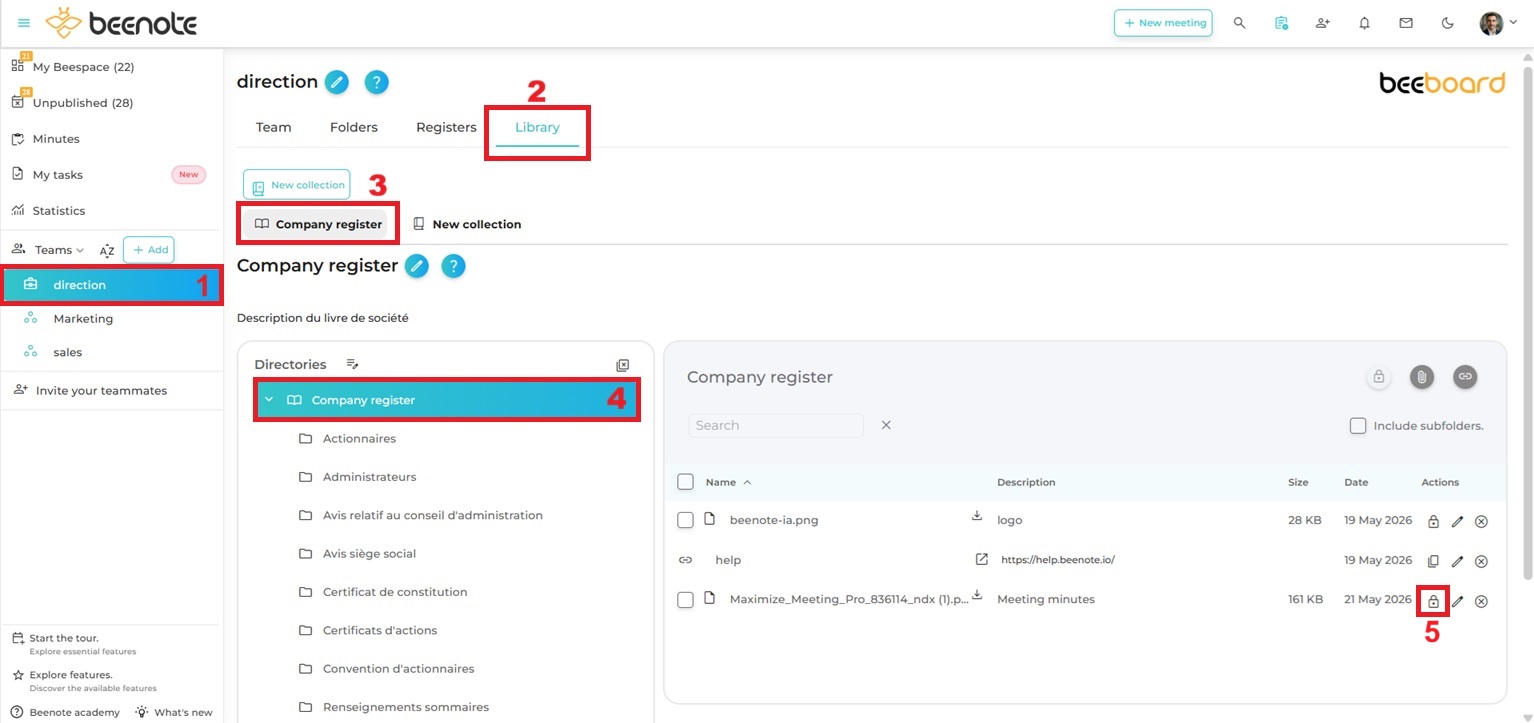
(1) In your Beespace, click on the desired Beeboard team in the left sidebar.
(2) Then select the Library tab.
(3) Open the relevant collection.
(4) Access the folder containing the desired file.
(5)In the Actions column, click the icon  corresponding to the desired file. A new window will open.
Learn more about: Library
PDF File Settings
The File Settings window allows you to manage the visibility, download permissions, and watermark of a PDF document in your library.
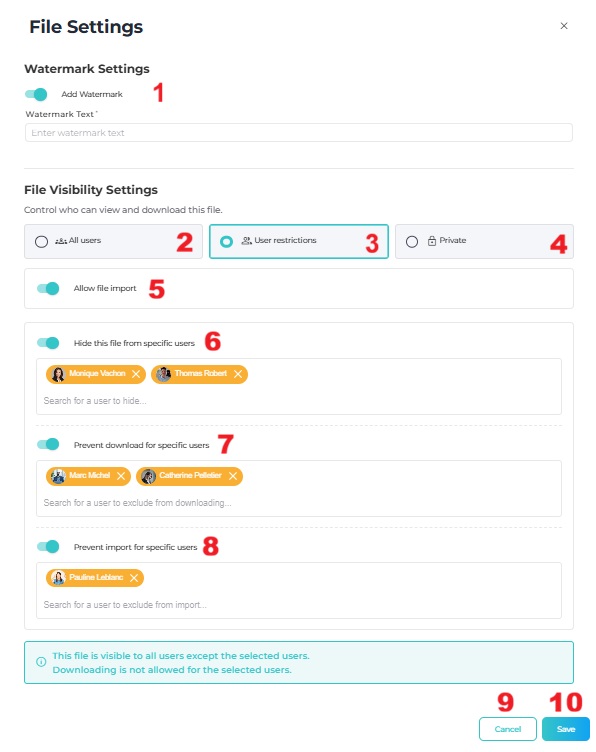
(1) Watermark Settings: This section allows you to add a watermark to the document in order to enhance the confidentiality of the information.
(2) The file is accessible to all users who have access to the team. Downloading is allowed for all users.
(3) Restricts file access to selected users only, according to the rules defined in (6), (7), and (8).
(4) The file becomes private and is visible only to you. Other team members cannot view or download this document.
(5) Enable this option to allow users to import the document. If disabled, only you will be able to add it to an agenda, task, or resolution.
(6) Hide this file from specific users by selecting those who should not have access to it.
(7) Prevent specific users from downloading this file by selecting those who may only view it without download permissions.
(8) Prevent specific users from importing this file by selecting those for whom this action is not allowed.
(9) Close the window without saving the changes.
(10) Save the updated file settings.
Non-PDF File Settings
The File Settings window allows you to control the visibility and import permissions of non-PDF file formats, such as images and notepads, within the library.
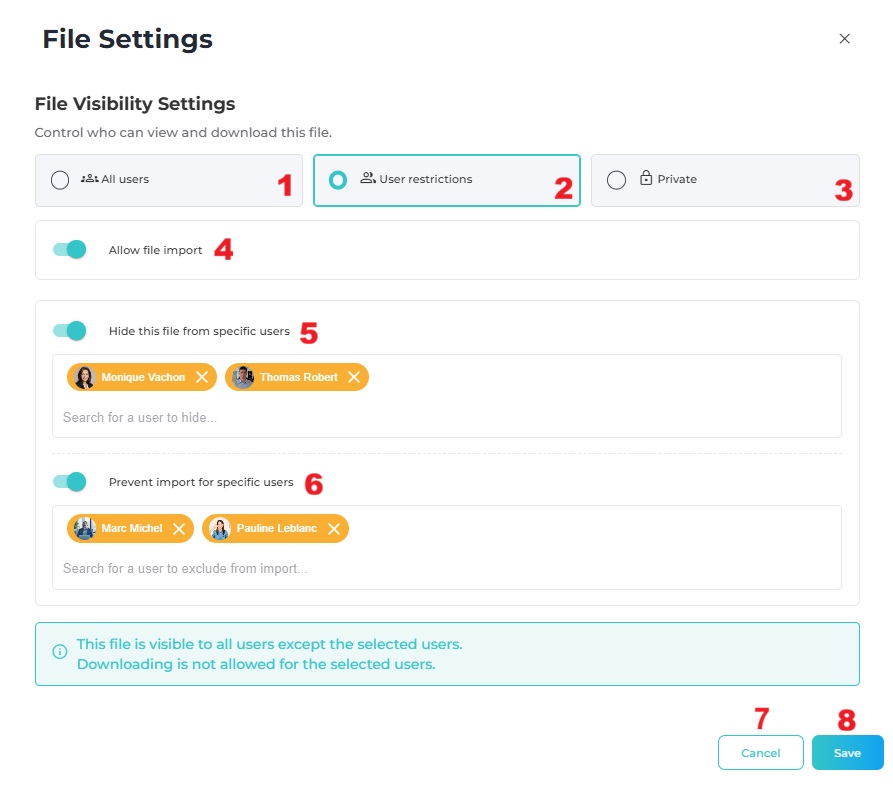
(1) The file is accessible to all users who have access to the team.
(2) Restricts file access to selected users only, according to the rules defined in (5) and (6).
(3) The file becomes private and is visible only to you. Other team members cannot view this document.
(4) Enable this option to allow users to import the document. If disabled, only you will be able to add it to an agenda, task, or resolution.
(5) Hide this file from specific users by selecting those who should not have access to it.
(6) Prevent specific users from importing this file by selecting those for whom this action is not allowed.
(7) Close the window without saving the changes.
(8) Save the updated file settings.
File access management outside the Library
This section allows you to manage access rights for files outside the Library, particularly when creating an agenda, during a meeting, in an unpublished minutes report, as well as when importing a file into a task or a resolution.
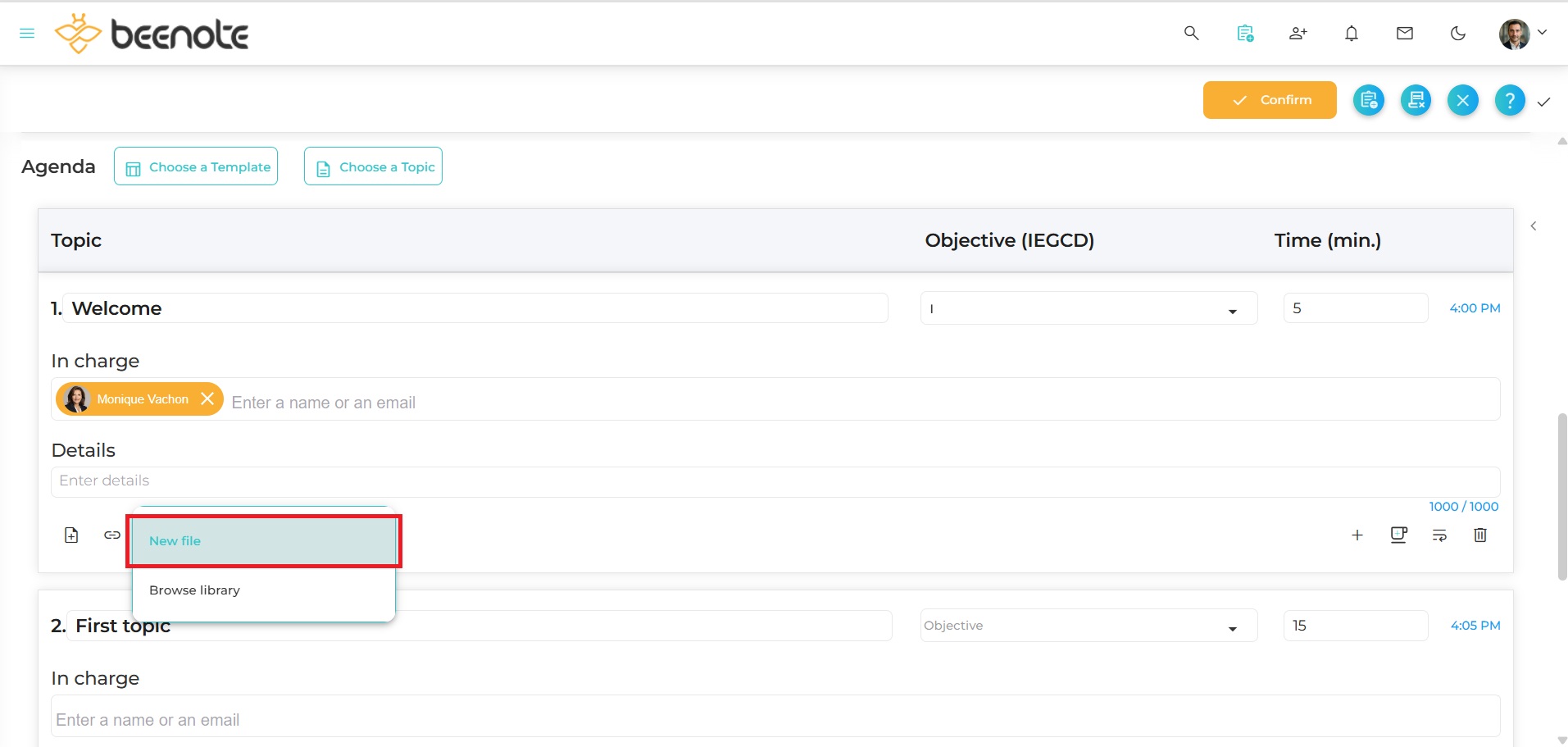
Only the user who imported the file has access to the settings icon to manage their file.
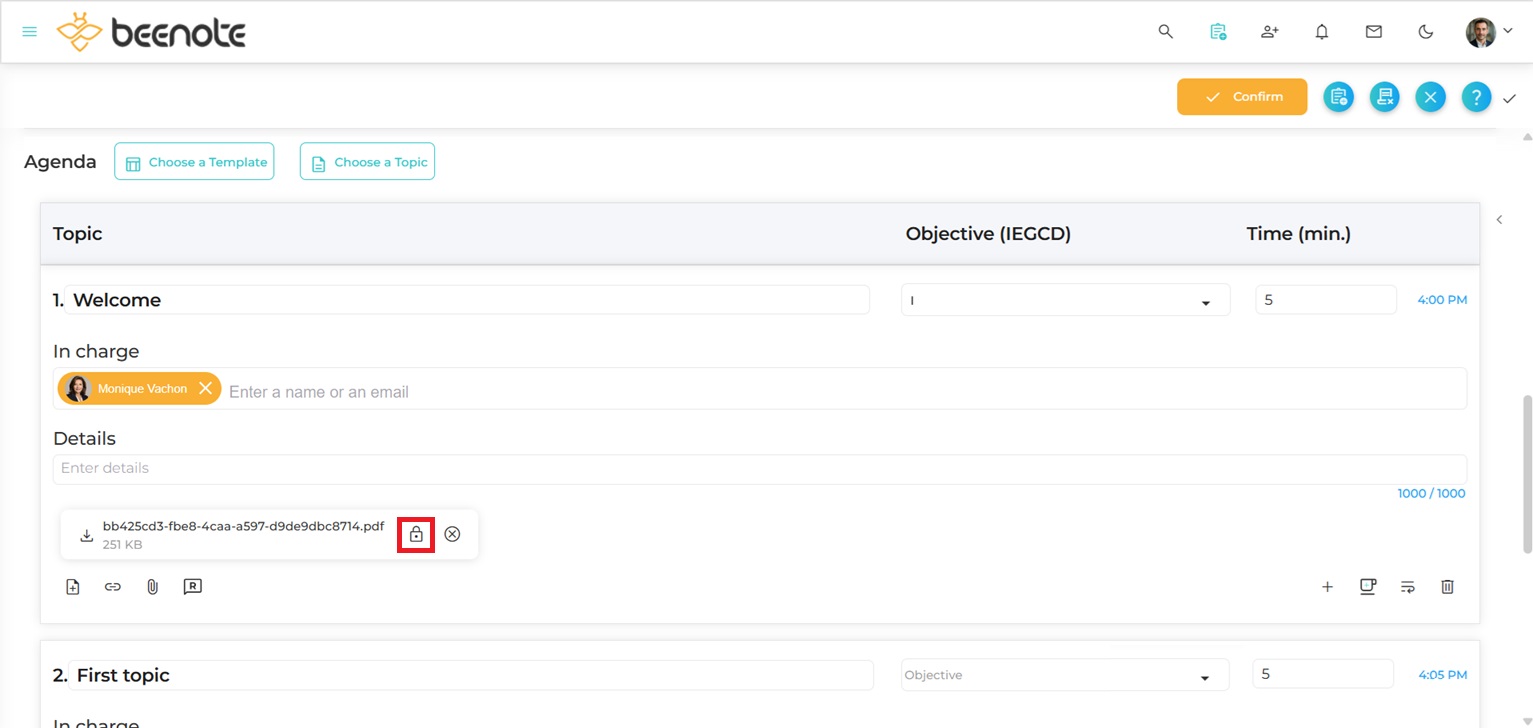
PDF File Settings
The File Settings window allows you to manage the visibility, downloading, and watermark of a PDF document.
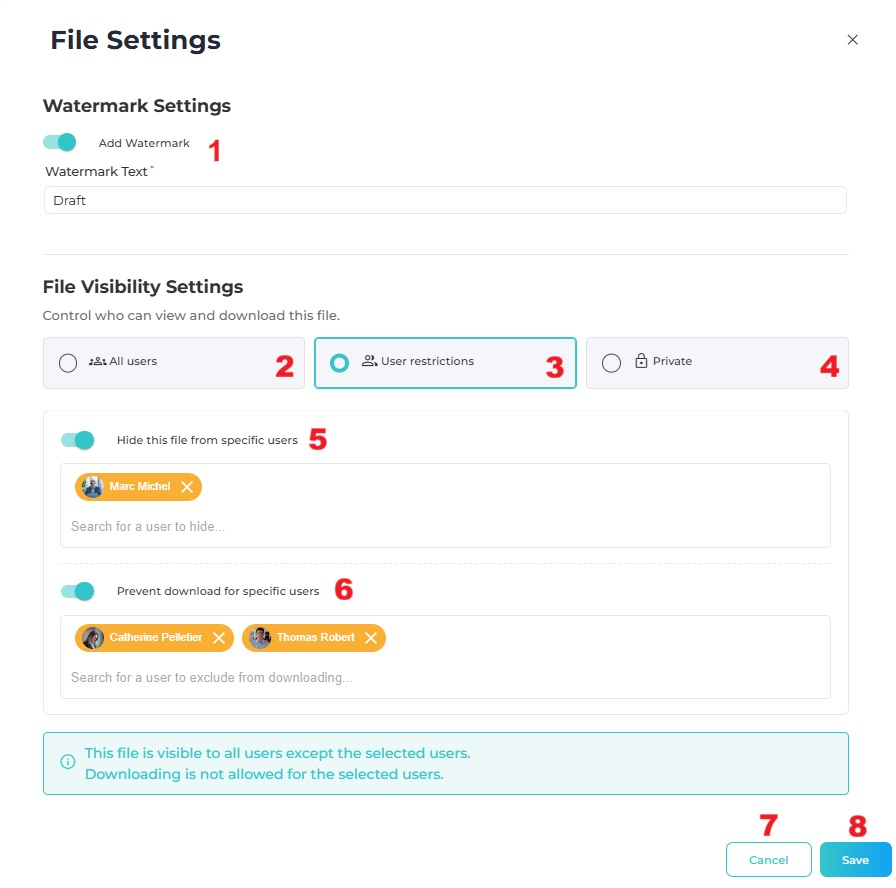
(1) Watermark Settings: This section allows you to add a watermark to the document in order to enhance the confidentiality of the information.
(2) The file is accessible to all users who have access to the team. Downloading is allowed for all users.
(3) Restricts file access to selected users only, according to the rules defined in (5) and (6).
(4) The file becomes private and is visible only to you. Other team members cannot view or download this document.
(5) Hide this file from specific users by selecting those who should not have access to it.
(6) Prevent specific users from downloading this file by selecting those who may only view it without download permissions.
(7) Close the window without saving the changes.
(8) Save the updated file settings.
Non-PDF File Settings
The File Settings window allows you to control the visibility and import permissions of non-PDF file formats, such as images and notepads.
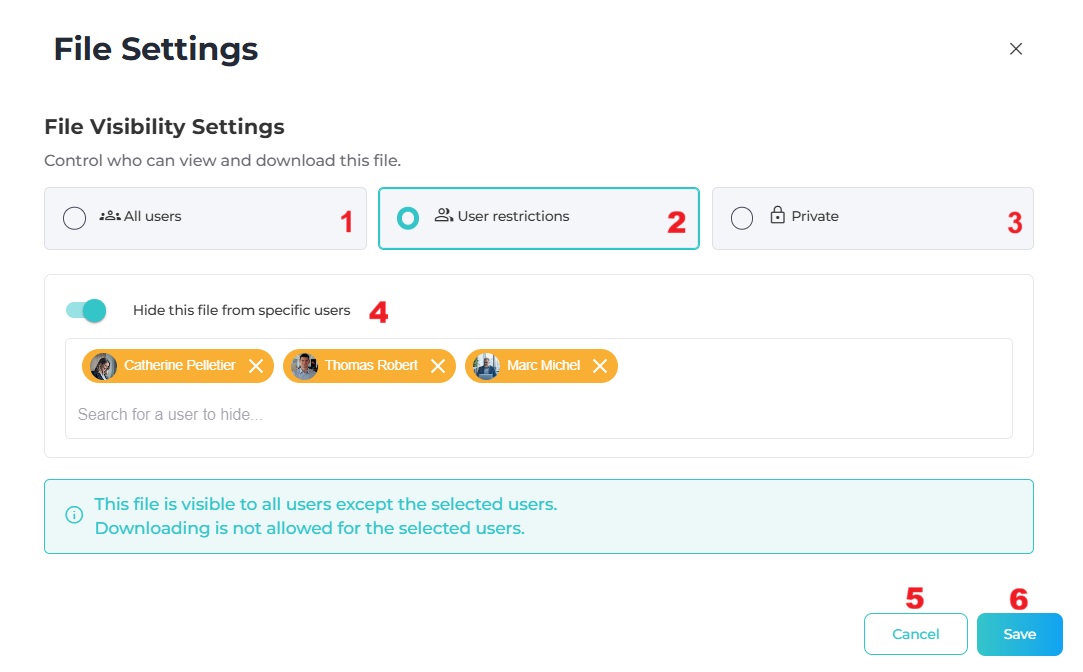
(1) The file is accessible to all users who have access to the team.
(2) Restricts file access to selected users only, according to the rule defined in (4).
(3) The file becomes private and is visible only to you. Other team members cannot view this document.
(4) Hide this file from specific users by selecting those who should not have access to it
(5) Close the window without saving the changes.
(6) Save the updated file settings.
 Next steps
Resolution Management: View all resolution features.
Taking Personal Notes: Personally document your meetings in private mode.
Resolution Register: Prepare resolutions and find them easily in the register.